Tuesday, February 23, 2016

How to Recover Deleted WhatsApp Messages and Photos on iPhone


WhatsApp message deletion accidentally is normal circumstances, so WhatsApp gives very useful features to take backup or restore on iPhone and iPad in stalled iOS 5/6/7/8 or iOS 9. If you have recently deleted some important WhatsApp chat history and are looking to recover them, you use this feature to retrieve deleted WhatsApp messages, photos or videos directly in your WhatsApp account via the backup made by the app to iCloud.

Before moving forward, if you may not have a backup of the messages, or you likely don't want to restore the backup and delete all off the message history that's happened since the backup was made, you can choose the third-party recovery solution. Free iPhone Recovery enables you to recover deleted WhatsApp messages, images and videos from iPhone or iPad and save WhatsApp data to computer as backup. Just download it and have a try!

 

Video demo:
step 1:Download & install iPhone WhatsApp Recovery software on computer and check WhatsApp & Attachment on the first interface.
Step 2: Connect your iPhone or iPad to the computer and start to scan WhatsApp messages.
Step 3:Preview and recover the deleted WhatsApp messages from iPhone or iTunes backup

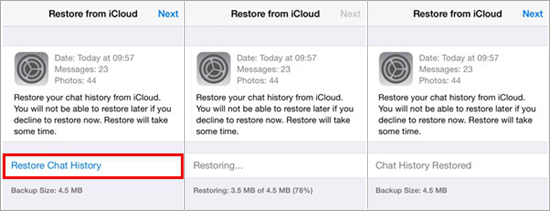
In case you have backed up WhatsApp chat history via the app itself before, you can follow these steps to recover WhatsApp chats from an iCloud backup:
  1. Go to WhatsApp Settings > Chats and Calls > Chat Backup to check the time of last WhatsApp backup.
  2. Uninstall WhatsApp, reinstall it from the App Store.
  3. Verifying your phone number(must be the same as WhatsApp backup account), follow the on-screen prompts to restore your chat history.
Read More »

Wednesday, February 17, 2016

How to Fix Bricked iPhone Caused by 1970 Bug

An interesting bug relating to the date and time system in iOS has emerged recently. Several users have discovered that if you change your iOS device’s date to January 1st, 1970, your device will be permanently bricked. This bug affects any iOS device that uses a 64-bit processor and is running iOS 8 or newer, including iPhones, iPads, and iPod touches. For those unsure, 64 bit processors are the A7, A8, A8X, A9, and A9X (iPhone 5s or later, for instance). If you use a 32 bit device, you’re in the clear.
For curiosity, many users tried this bug after they heard of it. Now the bug bricks your device and it won’t turn back on? Don’t worry. Your phone isn’t permanently bricked. You can fix it in different ways.


To fix iPhone 1970, you have several options.
1. Get your bricked iPhone into an Apple Store for technical support. ( An affected user says you may have to pay at least $90 at the apple store to fix it.)

2. Disassemble iPhone and unplug the battery. Wait for a few minutes and re-plug iPhone battery. Video guide here:


3. It may be possible to fix this by completely draining the battery until it resets itself (leave it stuck on the Apple logo until the battery dies and then keep trying to power it on, hold the power button etc to get rid of any leftover power). However, this may not work but it is worth trying before attempting the two issues above.

4. You can also try a self-repair WITHOUT removing battery. Apple has a method for restoring the phone from unanticipated software problems; it's called Device Firmware Update (DFU), and it's similar to erasing the drive on your computer and reinstalling the operating system from scratch. It appears that doing a system restore using DFU mode will usually (but not always) recover the bricked iPhone. It will result in the loss of all data on the phone, but that's what backups are for. You will be able to restore your last backup after iOS recovers. Video guide here:

5. It is most likely to get data lost when fixing iPhone or iPad. Some applications can fix stuck or dead iPhone. Here, Free iPhone Recovery software is recommended to fix your bricked iDevice without data lost. It helps to recover photos, text messages, contacts, notes and up to 16+ types of files from your bricked iPhone or iPad.

Read More »

Thursday, February 4, 2016

How to Retrieve Deleted Viber Messages on iPhone


Viber is a wonderful app that allows you to send and receive free messages as well as make free calls to other Viber users on any network among iPhone, Android phone or other platform. For loyal users, Viber chat history is important. It is quite frustrating to delete Viber messages by mistake like this situation:
"I have mistakenly deleted my Viber messages from iPhone 6s. I checked all the chats from my friends were gone! Is there any way to get them back? Please help me."

When encountering such a problem, the first thing you need to do is to check if you have backed up Viber messages on iPhone before. There are two backup options at your disposal. One is provided through the Viber app and creates a backup file(sent by Email in form of CSV) with your message data, but cannot be restored to your device. The other only for iOS, through iTunes or iCloud, will create both a backup file of your entire device's data and an option to restore to your iOS device.

If you have, you can get back deleted Viber Messages from either backup.
1. Download the CSV file from your Email site, but cannot be restored to your phone. (for both Android and iPhone)
2. Restore your iPhone from iTunes or iCloud back up, which is risky to lose more data. (only for iOS device)

If you have no backup, don't give up! You can try Free iPhone Recovery, which is specially designed to recover deleted Viber messages from iPhone (including Viber chat pictures and videos), even though you haven’t backed up Viber before.

Video guide:

Just download the software to restore Viber Messages on iPhone for Free.
 
Step 1: Open the recovery tool on your PC and check "Viber".
Step 2: Plug your iPhone or iPad into computer via USB cable. If your iDevice got lost or can’t be detected, just skip to the next step of iTunes backup recovery. 
Step 3: Start to scan the deleted Viber chats data from iPhone or iTunes backup.
Step 4: After that, preview and select the deleted Viber messages that you want to recover.
Read More »

Friday, January 22, 2016

Lost Contacts on iPhone? How to Restore Contacts on iPhone

It feels like to cut off the connection of family, friends, relatives, colleagues when something bad happens to the social data stored on iPhone,like contact list is missing. If you ends up losing your contacts on iPhone,don't worry. This page shows you how to recover contacts on iphone 6s, 6, 5s, 5, 4s.

First step, don't be panic.

Turn on airplane mode – Like first aid, it is a good first step to turn on airplane mode when you think that you have accidentally deleted or lost your contacts from your iOS device. This could allow you the opportunity to log on to your account from another device or browser and see if your contacts are still available online before your device has a chance to sync.

Where to recover

Export contacts from the cloud – Your best bet is to try to login to your account from a device or computer that you have not configured as a syncing destination for your accounts. Most if not all of the popular email providers support browser-based access to your contacts online. Each has a different way to export your contact list, but they all seem to be able to export to either a CSV or vCard file:
Recover contacts from iPhone with Free iPhone Recovery – If there is no contact list in the cloud, that is to say, you have not synced contacts with email cloud before, then you can try free iPhone Recovery to recover contacts from iPhone or iTunes backup file. Just download it and follow these steps.
 
Video Guide:
Step 1: Launch the tool and check the “Contacts” type. Go next.
Step 2: Connect your iPhone to computer. It will detect your iPhone with the matched iTunes backup file if you have one.
Step 3: Click on “Next” to scan your iPhone/iTunes backup. After that, you can recover and export lost contacts to PC as a single (.html) file.

Read More »

Thursday, January 7, 2016

How to Retrieve Deleted Photos from iPhone for Free

Question: My little brother took my iPhone 6 to play games on it. He deleted all my photos on my iPhone. But he didn’t mean to do that, so I forgave him. How can I recover the deleted photos from iPhone? Do you have some suggestions for me? Thank you in advance!

It is really annoying when important photos are deleted from iPhone, especially the pictures recording much of your precious memory. Don't panic! The good news is that you're likely to get back all your deleted or lost photos from iPhone. There are three ways for you to retrieve deleted photos from iPhone for free! Just read on in details.

Method 1: Recover Deleted Photos From Recently Deleted Album in iOS 8+
You may haven't noticed that there is a Recently Deleted album like trash bin restoring the deleted photos. If your iPhone or iPad is running iOS 8 or later, and it’s been under 30 days since you deleted the images, you can easily get them back.
Step 1: Open the Photos app and tap on Recently Deleted album.
Step 2: Tap Select in the upper right and choose the photos you’d like to recover. (Or Recover All pictures in the album.) 
Step 3: Tap Recover in the bottom right to recover the selected photos.
Note: You can skip to the second method if there is no image you need in the Recently Deleted album or your version is blow iOS 8.

Method 2: Retrieve Deleted Pictures from iPhone with Free iPhone Recovery
Free iPhone Recovery is a special-designed photo recovery App which helps iPhone/iPad/iPod touch users to retrieve deleted or lost photos from iOS devices, iTunes or iCloud backup. It can also recover deleted or lost, videos, text messages, contacts, notes, call history, WhatsApp and other data due to various reasons like accidental deletion, jailbreak, iOS update, factory settings restore or iDevice is broken/lost/stolen.
 

Video Guide:
Step 1: Run the software and check boxes of Camera roll, Photo Stream, App photos on the first interface. Then go to the next.
Step 2: Connect your iPhone to PC and  start scanning data from iPhone/iTunes backup.
Step 3: After that, you can selectively recover the deleted or lost photos from iPhone.

Method 3: Restore Photos from iTunes or iCloud Backup
The first thing you need to do is to check it out whether there are the latest backups of your iPhone in iTunes or iCloud. And then check if there are all  of deleted photos you recently took in the backups. 
You can restore deleted images from iTunes backup if you have a very recent and complete backup.
Step 1: Connect your iPhone to PC and run iTunes. Then click the iPhone icon.Step 2: Check the latest backup time and click on Restore Backup.Step 3 : iTunes displays your iPhone name as well as the latest backup available. Click Restore to get back your lost photos from iTunes backup.
When you need to restore photos on one you already have, your iCloud backup makes it easy.

Read more on How to restore your iOS device from iCloud.
Read More »

Saturday, December 12, 2015

How to Retrieve Deleted Text Messages on iPhone for Free

Mistakenly deleting Text Messages from iPhone often happens in our daily life. It is quite difficult but possible to recover deleted SMS messages on iPhone. If you have backuped iPhone data on iTunes or iCloud, you can restore from that. Otherwise, you will need to use third apps to retrieve deleted Text Messages on iPhone. Here are some useful and free ways to recover deleted Text Messages on iPhone 6s/6/5s/5c/5/4s/4.

Method 1: Retrieve deleted Text Messages with Free iPhone Recovery (Preferred Way)

There is a preferred way to recover deleted SMS directly from iPhone with free software which won't erase or overwrite device, no matter you don't have a backup file before deletion. Here, Free iPhone Recovery is recommended to you. Just download it and have a try!
 
Video Guide:
1. Launch the tool and select Messages, then go next.
2. Connect your iPhone to computer, then go next.
3. Scan and retrieve deleted SMS from iPhone and from iTunes backup if you have one on the PC.
4. Preview and click on Recover bottom to export SMS messages.


Method 2: Restore deleted iPhone texts from iTunes
This works only if you automatically back up text messages before.

1. Disable automatic syncing in iTunes to prevent the program from automatically synching Texts with your iPhone: Run iTunes > Edit > Preferences > Devices, then check the box next to the option stating, "Prevent iPods, iPhones, and iPads from syncing automatically."
Note: If you do not disable automatic syncing, your iPhone and iTunes will begin the syncing process as soon as you connect the phone to your computer. If this happens, your old SMS on iTunes backup will be never restored forever.
2. Connect your iPhone to the PC with which you sync it. iTunes should pop itself up (if not, open it up manually). You should see your iPhone icon in top right hand corner. Select it. Now choose 'Restore backup' of the latest one you want.

3. All the data you previously backed up will now replace the data on your phone. It will take a few minutes. As long as you haven't backed up subsequent to deleting those text messages, they should now appear in the normal messaging list on your phone handset.


Method 3: Get back SMS messages from iCloud backup
1. Erase your iPhone: Go to iPhone > Settings > General. From there, choose Resetand Erase All Content and Settings.

Note: This will erase all the content on your iPhone. It will be replaced by the backup version stored in the iCloud. Any data saved on your iPhone since your last backup will be lost. So please make sure you have the latest and complete iCloud backup when you do that.
2. After erasing your iPhone, the device should prompt you to either set it up as a new phone or to restore it from a previous backup. At this screen, select "Restore from iCloud Backup."

Note: This will only work if you have previously backed up your iPhone using the iCloud.
3. Allow the content to download onto your iPhone. Your iPhone will restart itself and the backup data will be restored to your phone from the iCloud. This could take several minutes to complete.

Read More »